Navigation
(Updated as of 12/04/2025)
CALPADS was designed with ease of user navigation in mind. The CALPADS Home Page appears upon successful login by the user. The Navigation Panel is displayed at the left of each page within CALPADS. The series of dropdown selections allow the authorized user to move directly between interfaces and to return to the “Home Page” as needed. Through these the dropdown selections, the user may directly navigate to the interface with which they need to perform a specific task or acquire the information they need. Links available on the “Home Page” also direct the user to outstanding tasks left to complete. Access to all of the interfaces, functional areas, and functions the user may perform is determined by the user’s authorization. Areas for which a user is not authorized will either be hidden from the user or inactivated. The user may also select the Help Link located in the User Menu from this page or any other page to access the CALPADS online Help information. Within each of the user interfaces and functional areas, the user is led through the pages with clearly labeled, action buttons and links.
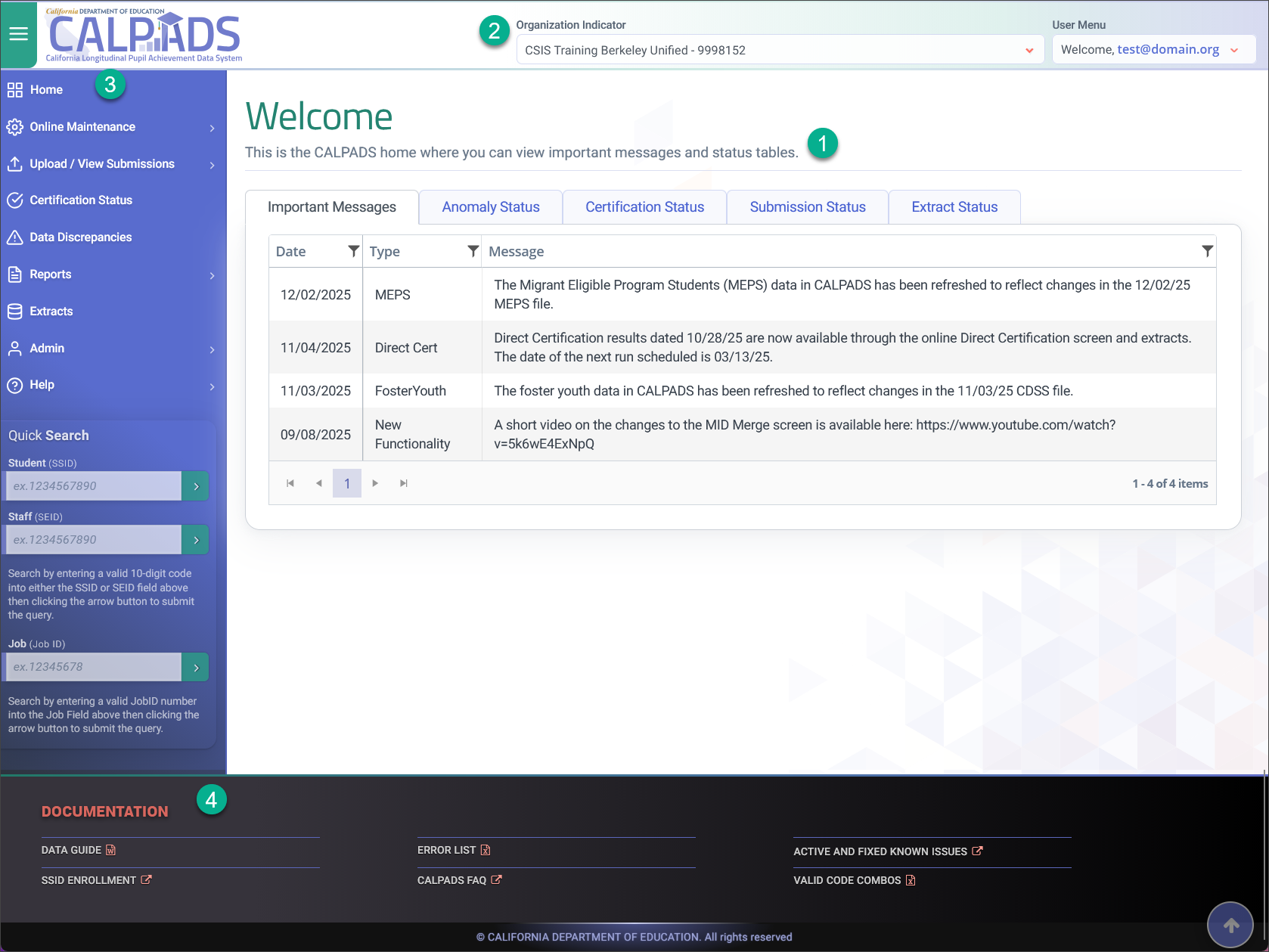
Homepage (1)
The CALPADS Home Page appears upon successful login by the user.

The CALPADS Home Page is divided into the following sections according to the user’s authorization:
- Important Messages
- Anomaly Status
- Certification Status
- Submission Status
- Extract Status
Important Messages
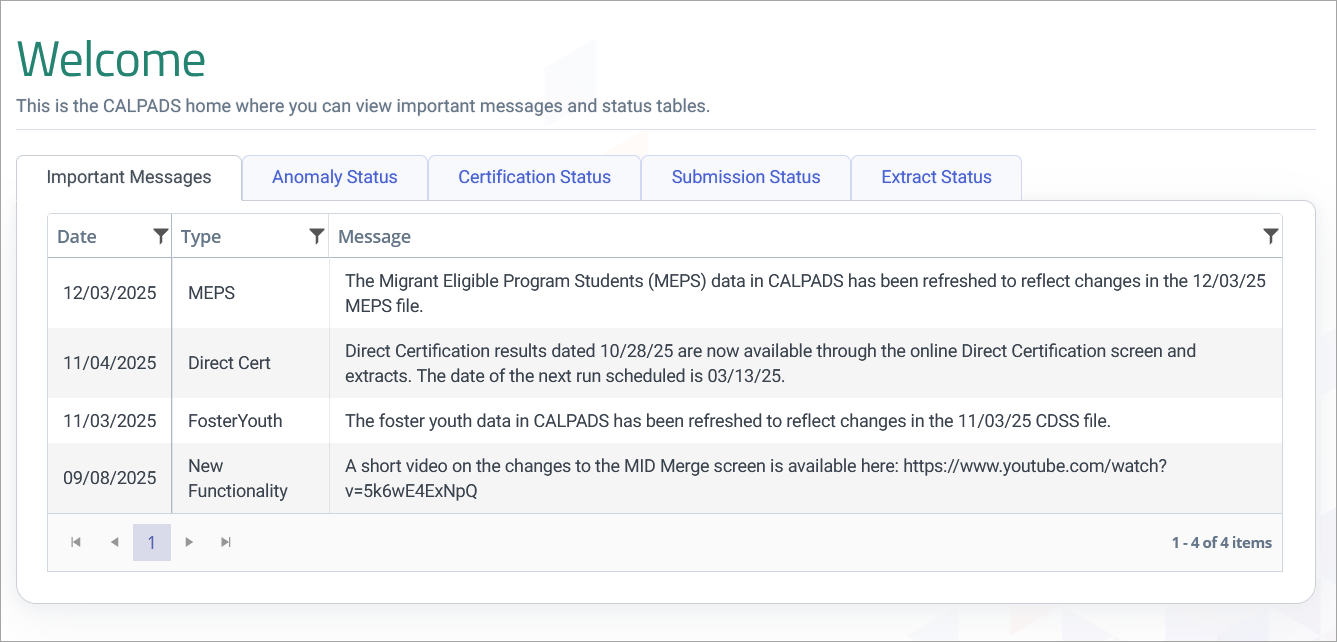
The Important Messages tab on the CALPADS Home page displays timely updates and system notifications relevant to LEAs.
Specific User Role needed: None
Anomaly Status
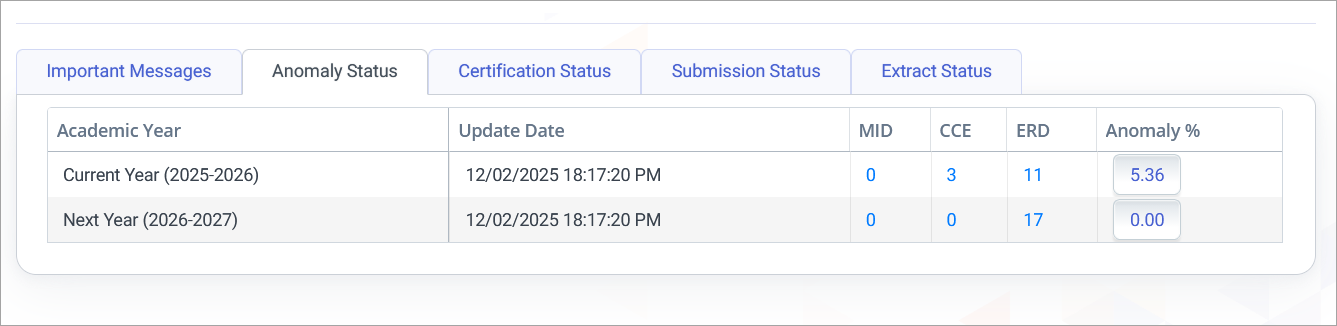
The Anomaly Status tab provides a quick overview of data anomalies detected within CALPADS for both the current and next academic years. These anomalies represent potential data quality issues that LEAs must resolve to ensure accurate enrollment reporting. The tab provides a quicker way to view Anomaly statuses outside of the Anomalies Management page.
Specific User Role needed: Anomaly Contact role
Certification Status
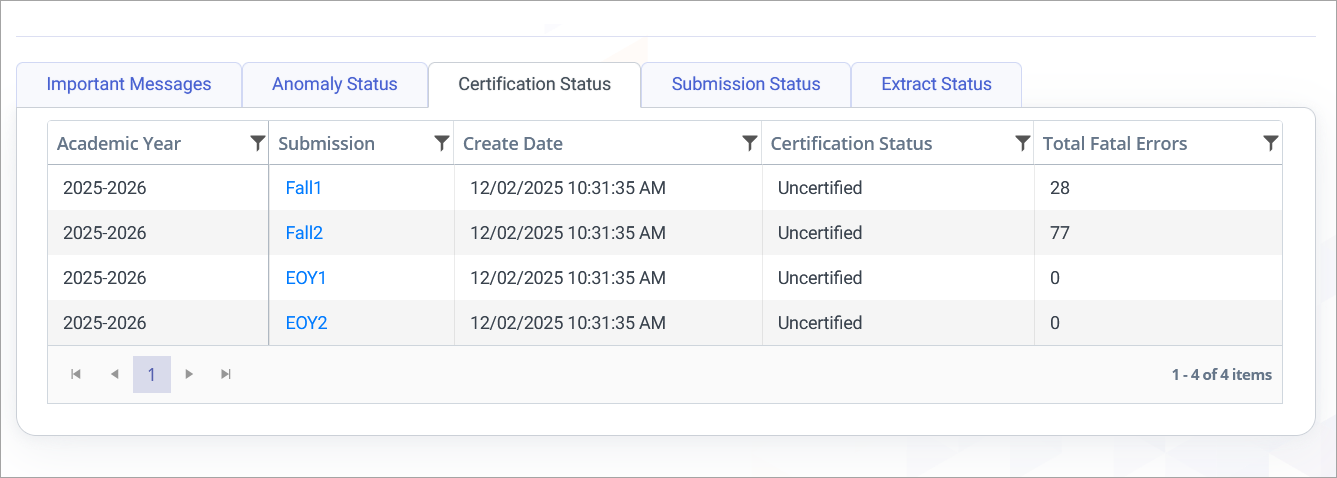
The Certification Status tab provides an at-a-glance view of the district’s progress toward certifying each statewide CALPADS submission for the selected academic year (e.g., Fall 1, Fall 2, EOY 1, EOY 2). The results shown reflect the current LEA indicated on the Organization Indicator in the User Profile Self-Service section.
Specific User Role needed: Data Certifier role
Submission Status
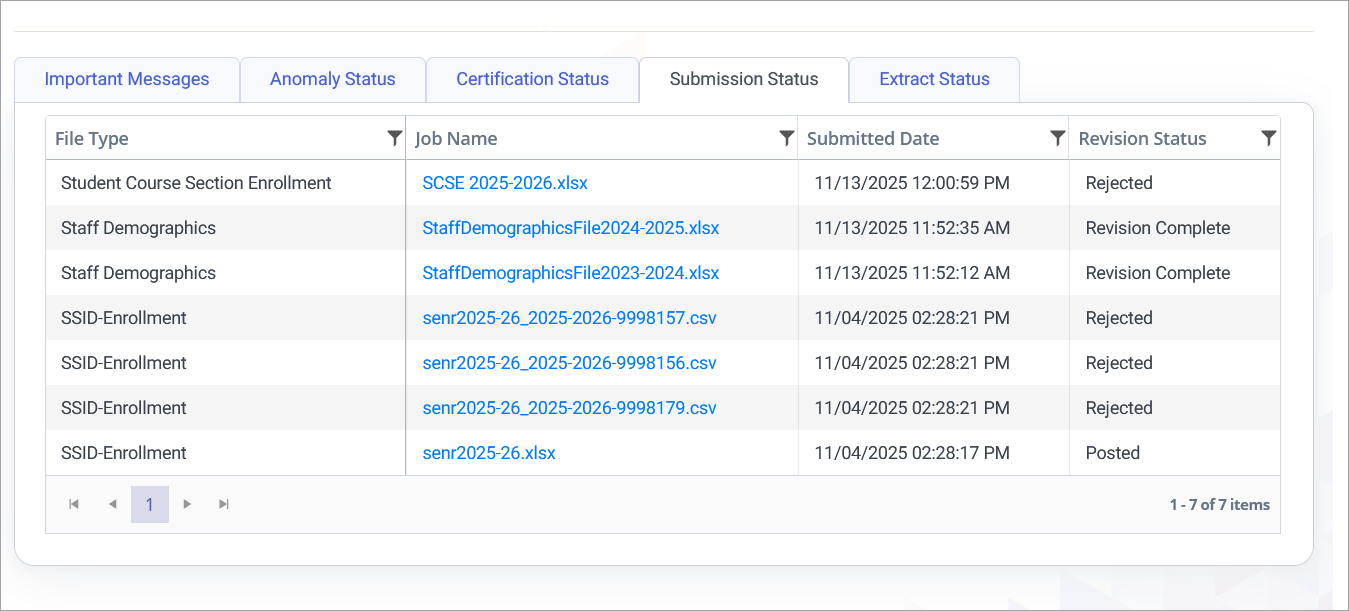
The Submission Status tab provides a centralized view of all file submissions uploaded to CALPADS by the user across all LEAs they are associated with. It displays the processing and revision status of each file, making it easy to monitor whether submissions were posted successfully, require corrections, or were rejected. This provides a quicker way to view upload file statuses outside of the View Submission status page.
Specific User Role needed: Any file type "Edit" role
Extract Status
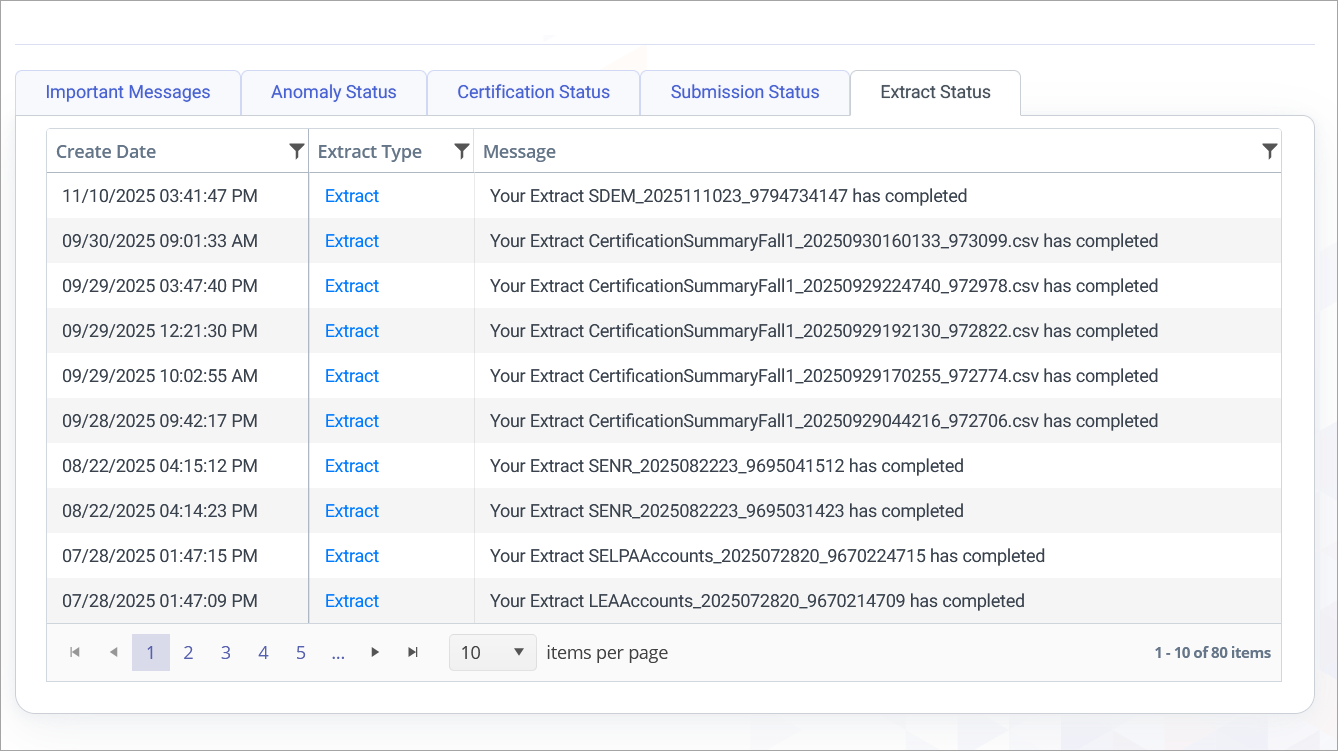
The Extract Status tab lists extract jobs that have been requested and completed by the user across all LEAs they are associated with.
Specific User Role Needed: For File Type extract: File type "View" role. For other extracts, please refer to the Roles to Functions List.
User Profile Self-Service (2)
The User Profile Self-Service area appears in the upper right corner of the CALPADS portal and enables a logged-in user to manage key aspects of their account and session independently. This area comprises two functional components:
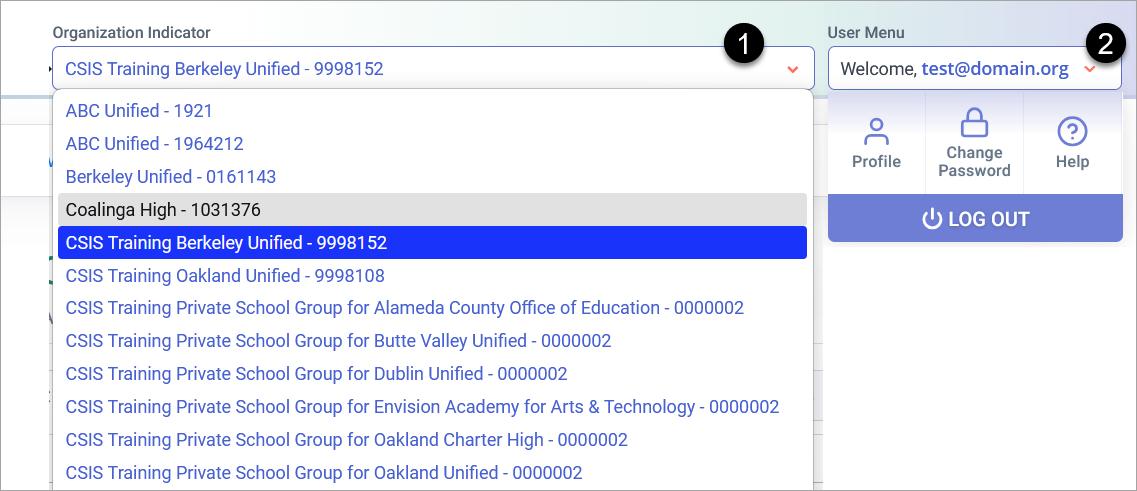
(1) Organization Indicator (for Multi-Entity Users)
For users associated with multiple organizations (e.g., a user who works across several LEAs, SELPAs, or charter agencies), an Organization Indicator dropdown enables seamless switching between organizational contexts without needing to log out and back in. All permissions, data access, and navigation context adjust automatically based on the selected organization.
(2) User Profile Menu
The User Profile menu provides direct access to the following options:
- Modify Account Profile — Update personal contact information (e.g., name, email), agency affiliation, or other profile details.
- Change Password — Reset your password as needed.
- Help / Online Manual — Open the CALPADS Help documentation from anywhere within the system.
- Log Out — End the current session securely.
Navigation Panel (3)
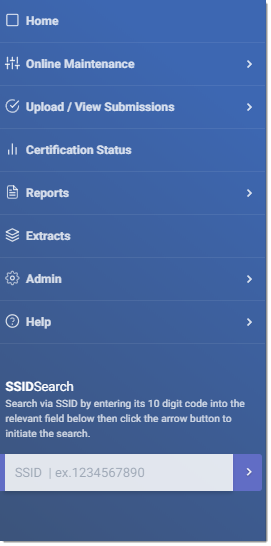
The Navigation Panel constitutes the primary interface through which a user traverses the CALPADS system. Located along the left side of the screen, it organizes access to all major functional areas — from data submissions to reporting tools — and adapts dynamically based on user permissions and organizational context.
Key Features
- Persistent Sidebar Access — The Navigation Panel remains available at all times during a user session. Users can expand or collapse it to conserve screen space.
- Context-Aware Links — Only the modules and menu items for which the user has assigned roles or privileges appear. This ensures users only see what they can access.
- Organized Grouping — Related functions are grouped into logical categories (e.g., Data Submissions, Extracts, Reports, Administration), facilitating intuitive navigation.
- Dynamic Refresh — If a user’s permissions are updated — or their organizational affiliation changes — the navigation menu updates on next page load or login to reflect new options.
- Quickly search for students (SSID), staff (SEID) and access file submission status (Job ID)
What the Navigation Panel Controls
Through the Navigation Panel, users can reach every major component of the CALPADS system, including:
- Data Submission Interfaces — Forms and upload pages for enrollment (SENR), course data (SCSE), staff data, demographic data, program participation, etc.
- Submission & Extract Monitoring — Pages such as Submission Status and Extract Status for tracking uploads, revisions, and generated extracts.
- Certification & Reporting — Certification windows (Fall, EOY), certification reports, and statewide or district-level reports.
- Data Management & Maintenance — Tools for data validation, maintenance, anomaly resolution, and other admin-level tasks.
- User & Organization Settings — Profile management, password change, organizational context switching (for multi-entity users), and log-out.
- Help Resources & Documentation — Links to the online manual, help articles, and relevant guidance.
Documentation Footer (4)

The Documentation Footer provides quick access to key CALPADS resources, ensuring users can efficiently locate support materials, reference guides, and system information regardless of where they are in the site.
Additional Navigation Features
Search Fields
A search field has the dedicated function of accepting user input to be searched for information in a database. Fields allow users to enter a query for entries that contain one or more of the user's keyword research.

Search fields are commonly accompanied by a search button (sometime indicated only by a magnifying glass symbol) to submit the search. However, the search button may be omitted as the user may press the enter key to submit the search, or the search may be sent automatically to present the user with real-time results.

Links
Links provide a way for the user to move from the page they are currently viewing to another page containing additional information about a specific area. A text link is presented as blue text with underlining. A graphical link or button will change its appearance as the mouse hovers or clicks.

If the count is underlined, the user may select that Count link to view the details that make up that count. In other instances, a field name may be in blue and therefore linked to the detailed information about that field. Lookup Links are also used which allow the user to select the link to see a list of valid values for the related field. In this case, when the user selects a value from the list, the linked field will be populated with the selected value.
Navigating Within a Page
Frequently, the CALPADS user is working with large amounts of data. The page navigation items are designed to help the user move efficiently through the data and to provide an indication of the subset of data the user is currently viewing. Some tools also allow a user to organize the data being viewed (e.g. sorting columns).
Navigating through pages of data
The system will default to show up to 10 results per page. To see more, select the desired values from the Items per page Number or select an operation arrow.
| Navigate within a page using pagination |
|---|
 |
| Navigate to the first page | Navigate to the previous page | View additional pages |
|---|---|---|
 |
 |
 |
| Navigate to the next page | Navigate to the last page | |
|---|---|---|
 |
 |
Page Number Display
The page display shows the current page being displayed and the total number of pages for that list. The user may select a page number to view in the bottom right of the results window

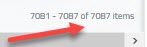
Total Records Display
The total records show the number of records returned which may be viewed in the bottom left corner of the results window.
Sorting data in a list
To sort a particular column, the user may select the column header once  to activate the sort data feature. The sort icon will display green when activated. The first selection orders records by the ascending values; second selection reorders records by the descending values; third deactivates the sort.
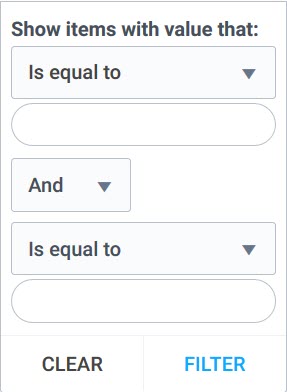
Filtering data in a list
To Filter a particular column, the user may select the filter icon  to the right of the column heading link. The filter icon will display blue
  in the column heading indicating that the column has been filtered. The first selection activates the filter options popup allowing further
customization of the resulting data values.
in the column heading indicating that the column has been filtered. The first selection activates the filter options popup allowing further
customization of the resulting data values.
Data Tools
There are many tools throughout CALPADS to help the user move through the system and enter data efficiently.
Calendar Tool
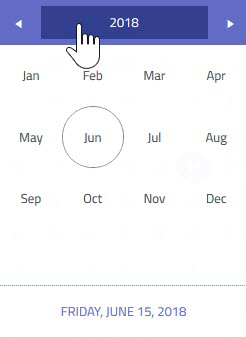
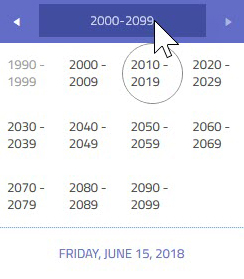
When the user selects the calendar picker icon, the system displays an interactive calendar from which the user can select a date. The user has the option to select the Month/Year header of the calendar to toggle between the calendar view options. The text box will be populated with the selected date. This ensures that the date will be entered in the correct format.
| Select a month | Select a year | Select a date range |
|---|---|---|
 |
 |
 |
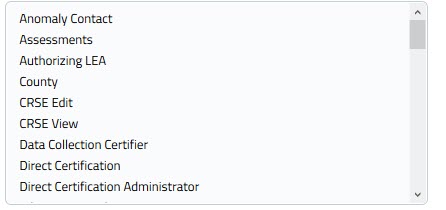
Dropdown Box
When the user selects the Arrow button,  a list of valid data for that field will be displayed. The dropdown list is generally used for smaller amounts of data.
Action Buttons
Almost every page in CALPADS will include one or more clearly labeled button(s) which the user will select to take some kind of action. Some of these buttons are simply related to navigating through the system and others instruct the system to take specific actions for that interface and data. Depending on the authority of a user, some buttons may be inactive. In other instances, buttons may be active at only specific times depending on the transactions that are taking place.

Radio Buttons
Many pages in CALPADS will allow to user to make single selection using a toggle feature. A radio button  with an empty center indicates a non-selected item while a filled center
  indicates a selection.