Certification Status
The “Certification Status” page displays when an authorized user selects the Certification Status link on navigation. This page displays a list of the defined CALPADS snapshot(s), in snapshot submission order, as well as the revisions of the user LEA’s data from the ODS taken automatically by the system for a specified reporting collection window. The system will display the name of a snapshot in the list as a link and the total count of errors - fatal errors and warnings - as a link, when the count is not zero. The user may select a Snapshot link to view the details of a snapshot or select the Errors count link to view the system-identified validation errors of a snapshot from the defined CALPADS validations and rules processing requirements. NOTE: The State User version of the display contains additional columns. See Administration Certification section for an explanation of the additional functionality.
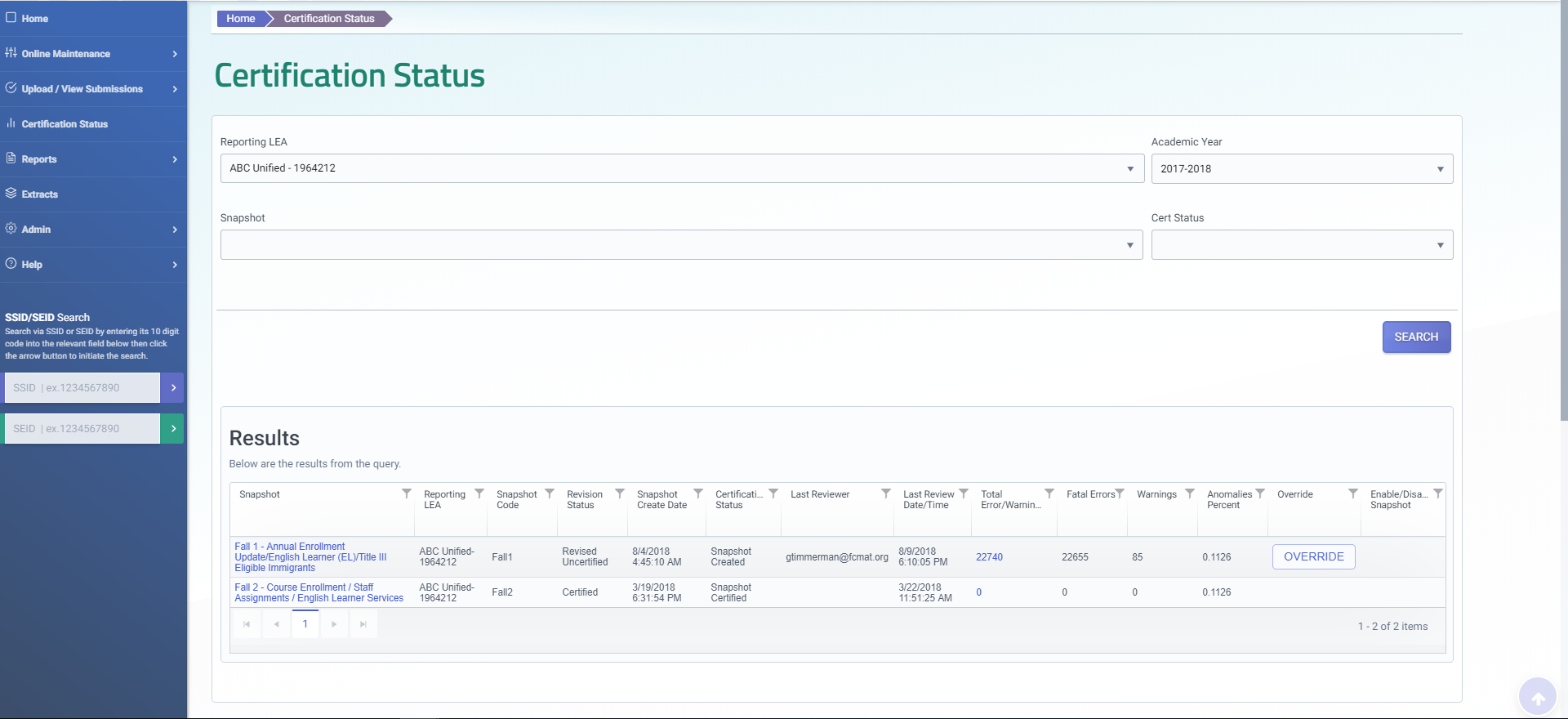
A Filter Options box is displayed on this interface so the user may modify the displayed list of snapshots by the following selections:
- LEA
- Academic Year
- Snapshot
- Certification Status
The different snapshot Certification Status states during a Snapshot collection window are as follows:
-
Snapshot Created – The collection window is open and a snapshot has been generated for the LEA
-
Snapshot Reviewed – A user associated with the LEA has reviewed either errors or reports associated with the snapshot
-
Uncertified - This version of the data has not been certified or has been decertified
-
Snapshot Certified - The snapshot for the Collection Window has been certified
This Certification interface has the following functionalities:
- View a complete list of Snapshots, their Certification status, reviewer and review date, record count, and error count and anomaly percent (for Fall 1 submission only).
- Modify the displayed list of snapshots by filter option selections
- Select Revision Status dropdown to view revisions within each submission’s snapshot
- View more Certification details of a specific snapshot
- Select to view the Certification errors of a snapshot
Required User Roles
Users need the following roles to access this section of CALPADS.
- Data Collection Certifier role to allow user to certify.
- EOY1 Reports
- EOY2 Reports
- EOY3 Reports
- Fall1 Reports
- Fall2 Reports
Certification Status Interface
The “Certification Status” UI is depicted immediately below followed by a screen elements table, a user interaction section, and a system operations section with the available system functions, requirements and possible processes that may occur through this interface.
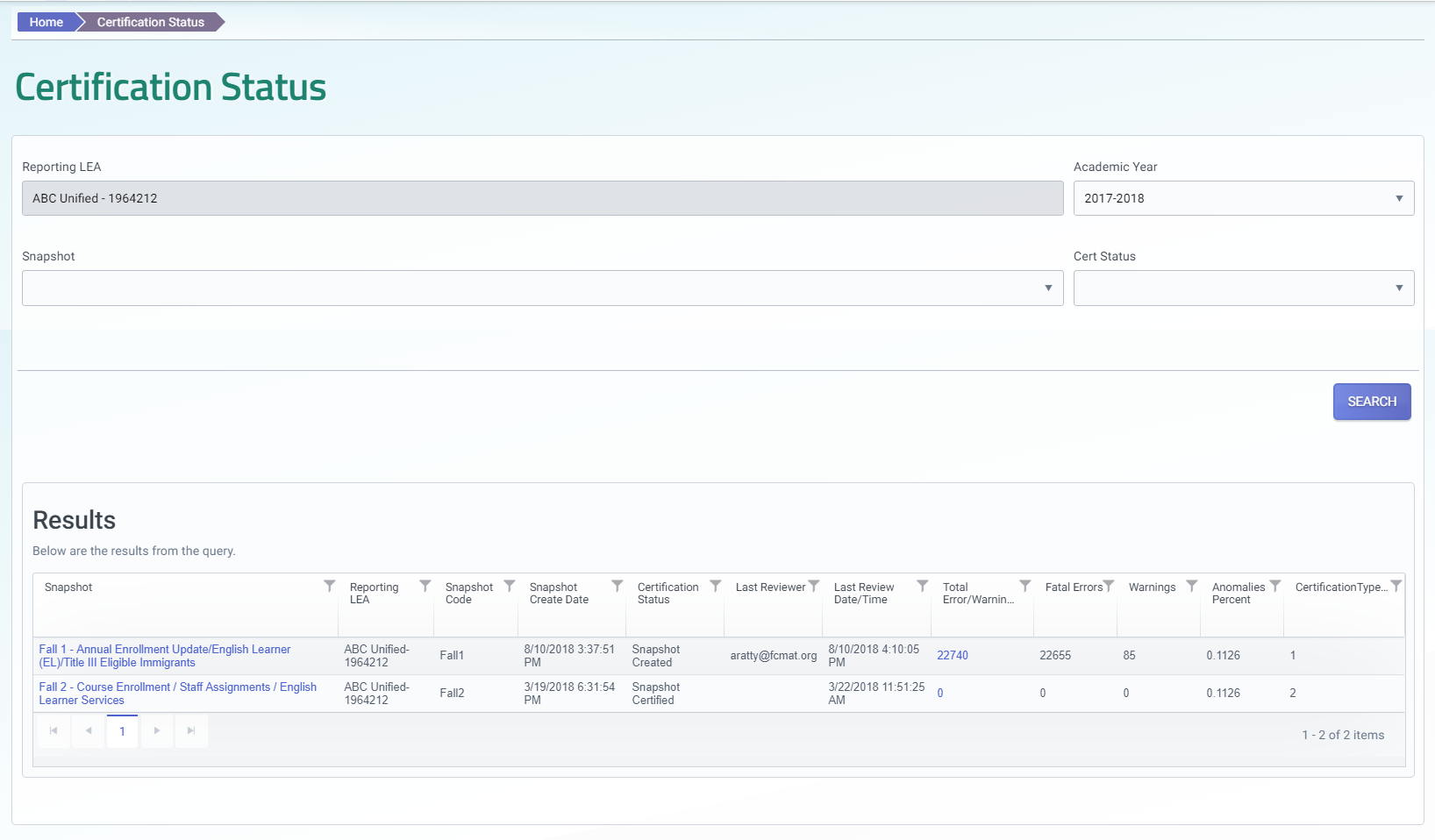
Certification Status Filter Table
| Filter Options | Field Description | Required | Validation/Business Rule |
|---|---|---|---|
| Reporting LEA | LEA Name with CDS code | N/A | Only Orgs associated with user’s account are available. |
| Academic Year | Dropdown Academic year | N/A | Reverse chronological order starting with current academic year |
| Snapshot | Submission with definition | N/A | |
| Cert Status | All statuses available for the selected LEA, AY, and Snapshot | N/A |
Results Details Table
| Screen Label | Field Description | Required | Validation/Business Rule |
|---|---|---|---|
| Snapshot | |||
| Reporting LEA | N/A | Only Orgs associated with user’s account are available. | |
| Snapshot Code | Submission | N/A | Order by the descending Snapshot submission certification sequence within the Academic Year; that is, Fall1 before Fall2 before EOY1. |
| Revision Status | The revision’s status | N/A | • Only 3 of the 4 statuses will be viewable at one time because Certified and Decertified will not be viewable together. |
| • Once a revision has been certified, there can be another most recent “Revised Uncertified” revision if available throughout the Snapshot Collection window. | |||
| • Once a revision is “In Review-Uncertified”, there can still be another more recent revision “Revised Uncertified” if available throughout the Snapshot Collection window | |||
| • If a revision has been decertified, there can be another more recent “Revised Uncertified” revision if available throughout the Snapshot Collection window | |||
| • If there is both a certified revision and a decertified revision available, the system shall NOT display a decertified revision | |||
| • Retain the value of the selected Revision Status and pass value as a filter to each Aggregate and Supporting Report on the Certification Details screen. | |||
| Snapshot Create Date | Created date of the revision | N/A | |
| Certification Status | Certification status of the revision | N/A | Certification Status = Uncertified when Revision Status is: |
| • Revised Uncertified | |||
| • In Review Uncertified | |||
| • Decertified | |||
| • If all 3 revisions are available, default shall be in the order shown in the Revision Status field. | |||
| Last Reviewer | Last updated by user of the revision | N/A | |
| Last Review Date/Time | Last review date/time of the revision | N/A | |
| Total Errors/Warnings | Total # of Errors/Warning for the revision | N/A | Link opens Certification Error Details |
| Fatal Errors | Fatal errors for the revision | N/A | |
| Warnings | Warnings for the revision | N/A | |
| Anomalies Percent | Percentage of Anomalies for the revision | N/A | Displayed for Fall 1 snapshots only. Column will still be displayed for any snapshots, but will remain blank for anything other than Fall 1. |
| Link to SSID Anomaly Status screen. | |||
| Note: The Anomaly Percent calculates for each LEA overnight and is not calculated during the revision process. The percentage will change for all revision statuses after the nightly process completes. | |||
| Override | Overrides fatal errors | Available to State Administrators only | |
| Enable/Disable Snapshot | Available to State Administrators only |
Certification Summary
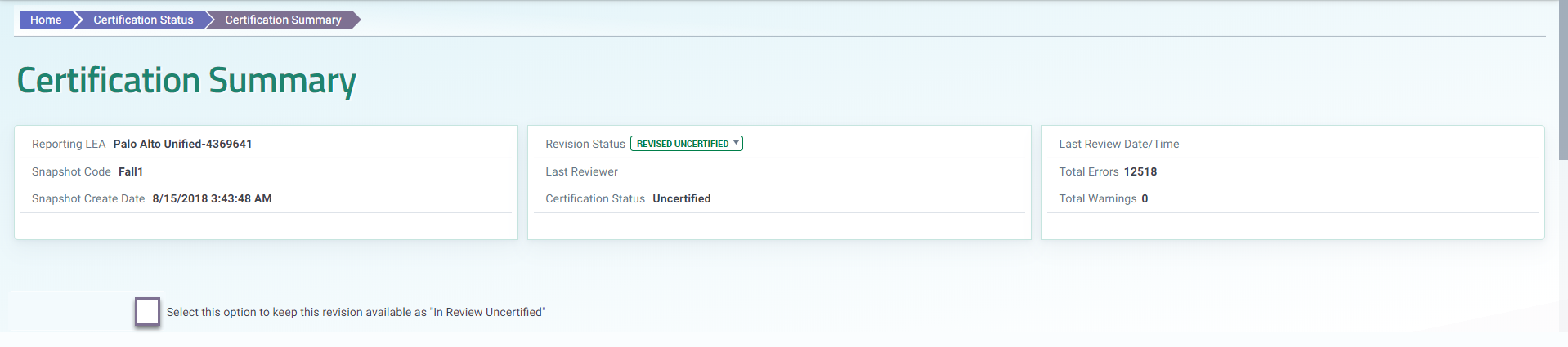
When a user selects the Snapshot or Total Errors/Warnings hyperlink on the Certification Status page, the system will display the Certification Summary page with the key details of the selected snapshot displayed across the top of the page, including create date, certification status, last review date, and total errors. There are multiple sections to this UI:
- Snapshot Revision Summary
- Error Filters
- Filtered Results
- Reports
- Certification Buttons
- Snapshot History
This interface has the following functionalities for a selected snapshot:
- Filter the Errors for the Revision
- View the identified Validation Error(s) of each Error Category
- View the aggregate count for each Validation Error by Category
- View the individual records associated with the specific validation error
- View the Aggregate and Supporting Reports related to the Snapshot
- Certify or Decertify the Snapshot
- View the history of the Snapshot
The “Certification Summary” UIs are depicted immediately below, followed by a screen elements table, a user interaction section, and a system operations section with the available system functions, requirements, and possible processes that may occur through this interface.
Snapshot Revision Summary
The Certification Summary section reflect relevant information pertinent to the mos t recent snapshot or revision status selected. The Revision status enable the user to select a specific version based on eth available snapshot revisions.
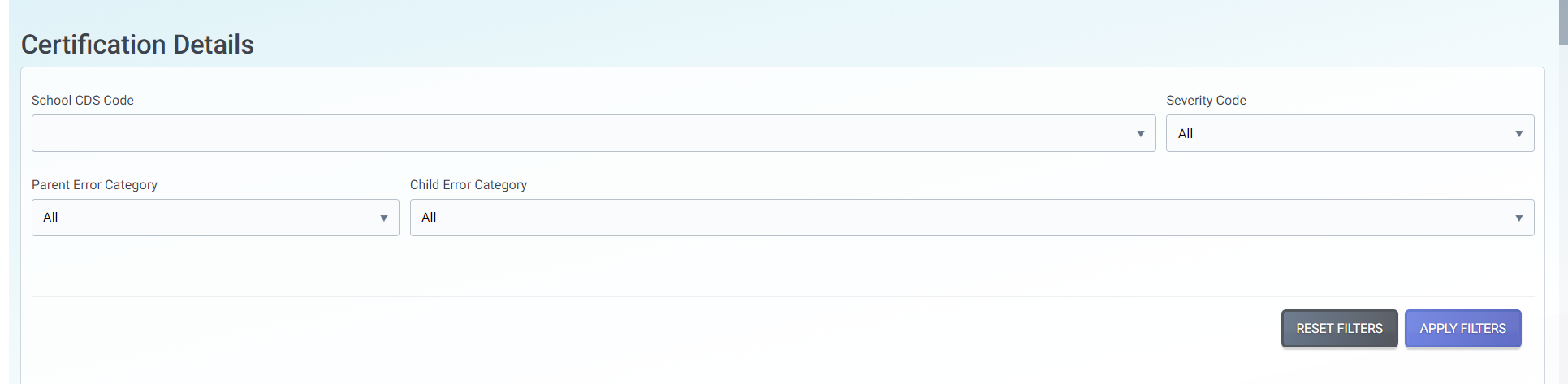
Certification Filters and Results
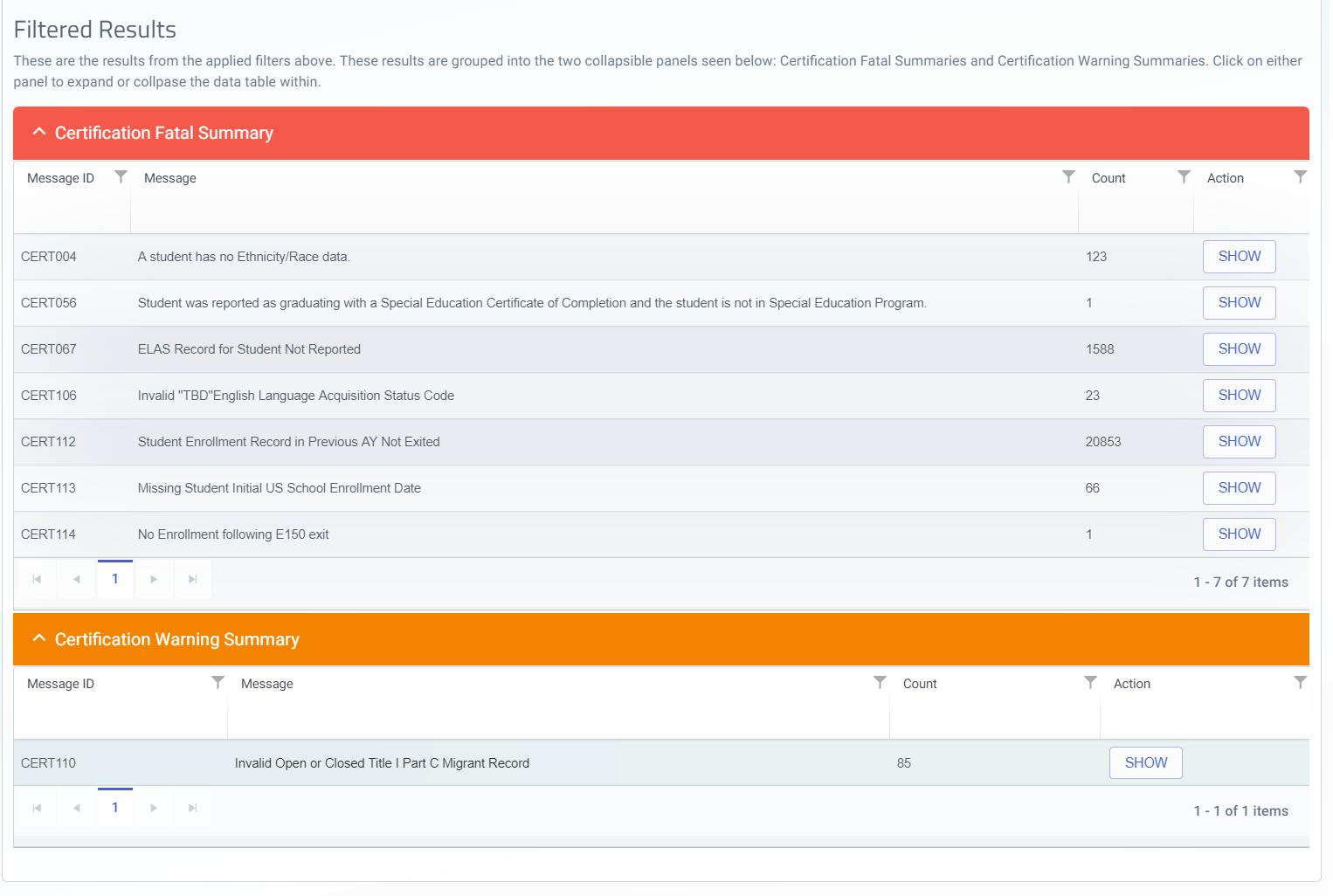
Filter options are presented to allow the user to select and resolve smaller subsets of errors. The filters section is followed by Filtered Results, constrained by the selected filters, and divided into Fatal and Warnings categories. Each certification validation that triggered is listed along with the number of times that error was triggered. Clicking the “Show” button will display the submitted records associated with that error.
Certification Reports
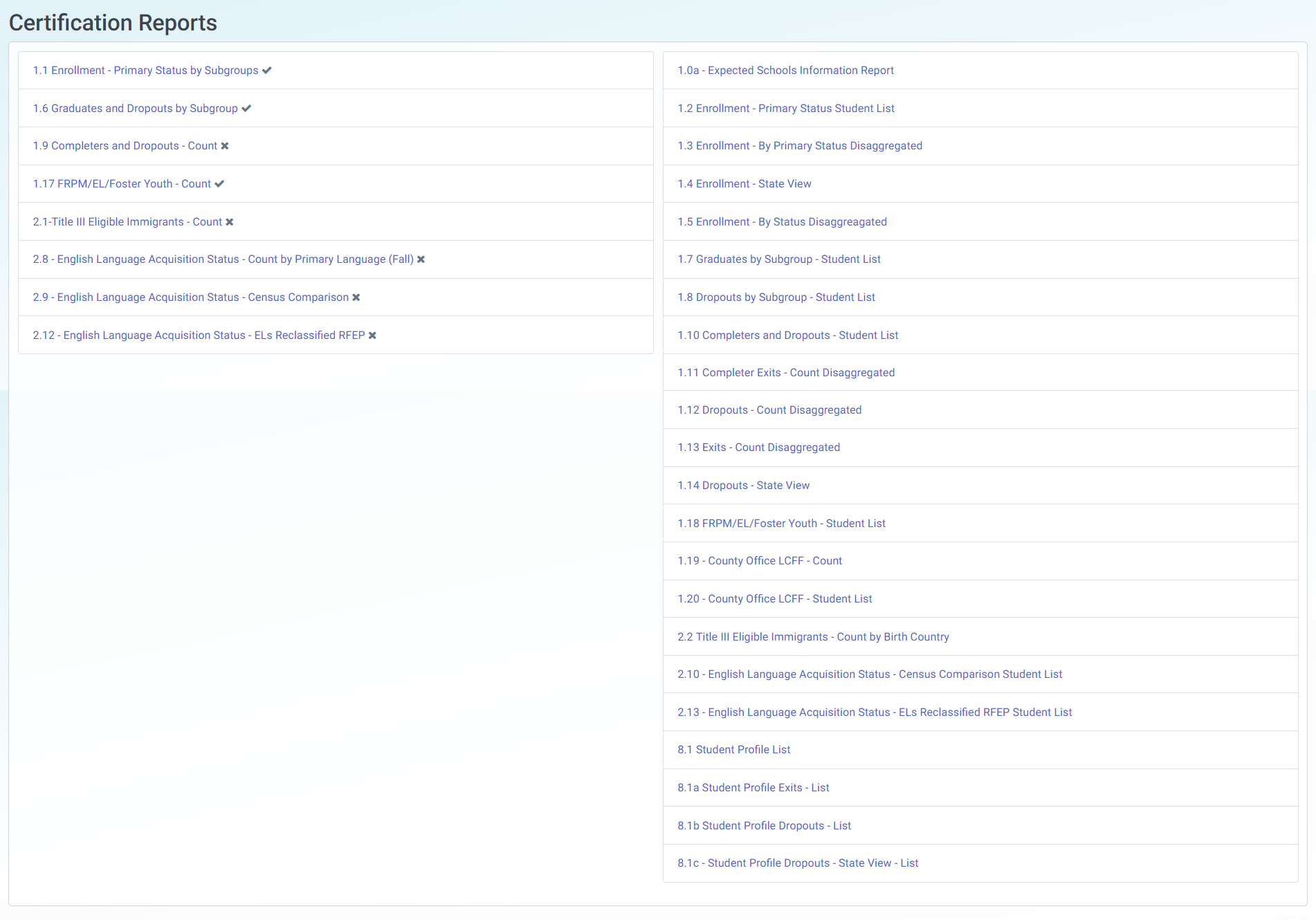
Below the Certification Error Reporting sections, the system will display the Certification Reports box.. The reports box will contain CALPADS Certification Report(s) of the LEA submitted State Reporting data that must be viewed before the snapshot may be certified. The reports box will also contain additional supporting report(s) to assist the user with determining if the State Reporting data is ready for certification.
Certify Snapshot Buttons
The system will only display the Certify Snapshot button during a specified State Reporting data collection window, after a user has viewed each Certification Report for the selected snapshot and the system has displayed the Completed icon (a check mark) for each report.
Beginning 2017-2018, the user will also need to check the Certification Acknowledgement box. If the Certify button is present and selected, the system will set the revision status to the appropriate certified level, and set the snapshot’s record in the State Reporting Snapshot database.
NOTE: For snapshots for years prior to 2015-2016, button will be disabled.


Snapshot History
The Snapshot History section of the Certification Details UI (located on bottom of screen) is intended to provide an “event log” of various activities against revisions within the selected snapshot, during the Snapshot Collection window. Revision activity will be logged within the snapshot such as creation of a revision, change of a revision status, change of a revision’s certification status. Revision activity will only be visible until the Snapshot Collection window closes (i.e., from the Collection Window Start Date to the Amendment Window End Date.) The Snapshot History table is only intended to provide activities of the revisions as they relate to the selected snapshot.
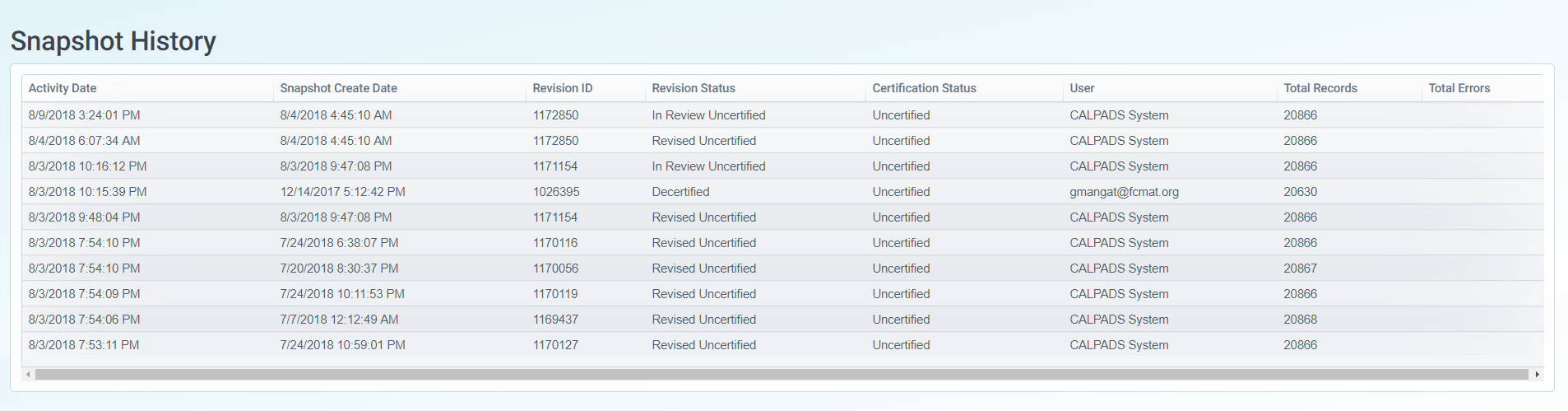
Revisions are created continuously as ODS changes occur regardless of the reporting windows, but the reporting windows drive the ability to view and certify a revision. For purposes of when activity should display in the Snapshot History table in the UI, only the activity occurring within the reporting window should be displayed.
For example, if a Revision is created within the Fall 1 Reporting window, it should appear in the Fall 1 Snapshot History table. If the Revision is created outside of the Fall 1 Reporting window, no entry should be visible in the Fall 1 Snapshot History table.